Pictures, video, 3D and voice
Media gallery: your folders of pictures and videos
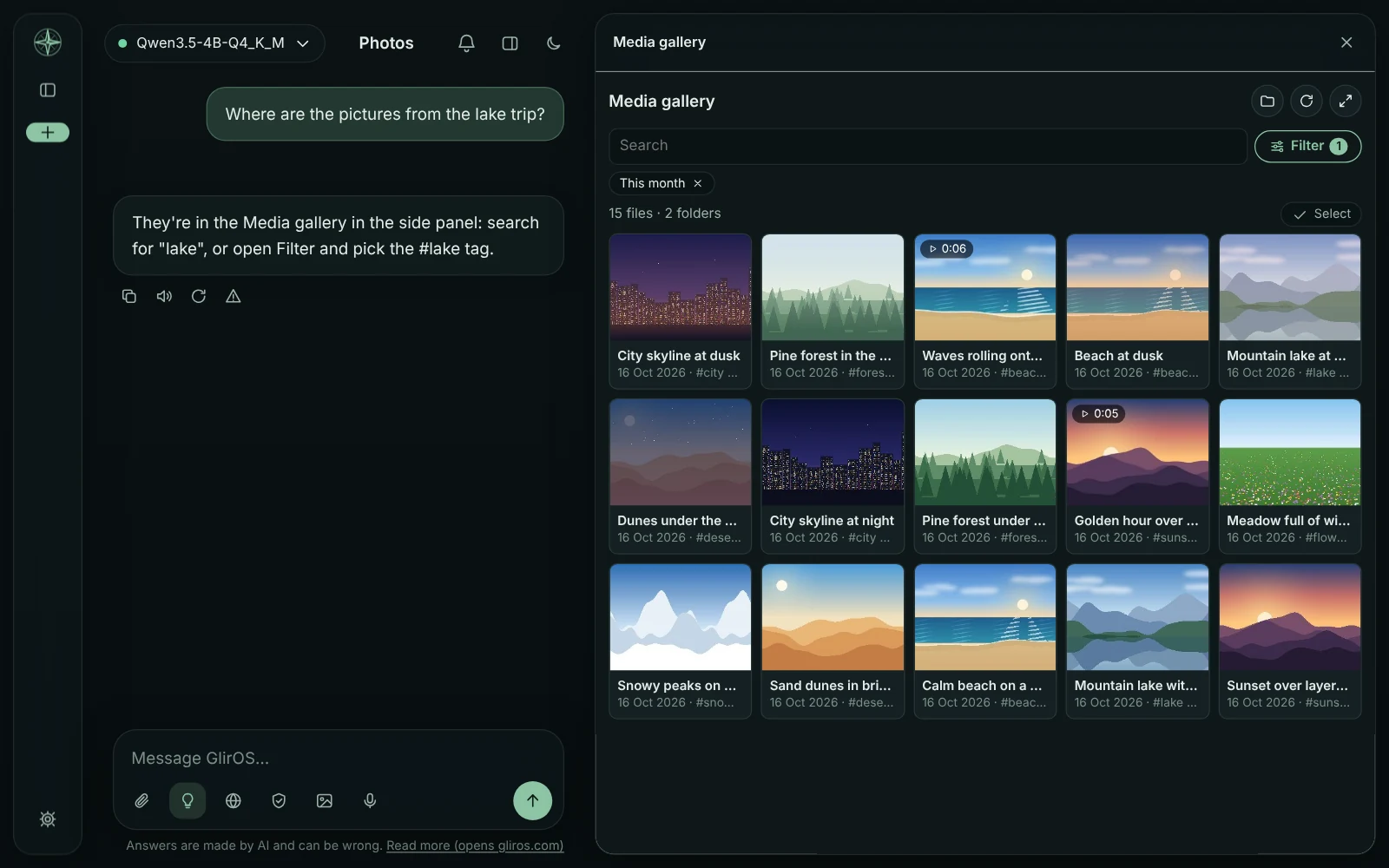
The Media gallery tool (from the tool catalogue: Settings > Tools > More tools) shows one or more folders of pictures and videos as one searchable grid. + Folder adds a folder (the desktop app's folder dialog; in the web version Chrome or Edge ask for access).
Notes and descriptions
When adding, the user chooses where the gallery's notes go: in the folder (a hidden .gliros-gallery folder, so another GlirOS that adds the same shared folder finds every description) or only in this GlirOS (the folder stays untouched). GlirOS makes small thumbnails and a model that sees pictures writes a title, a short description and tags per file; videos are described from stills at the start, middle and end. A cloud model gets only small copies, and only after the user said yes for that folder; a model on this device just works.
Searching and using the gallery
Search, filters (type, date, folders, tags), saved views, Play (a small playable copy made by the media engine in the desktop app), Use as thumbnail, Check again, and Send to other media tools. Nothing is ever deleted by itself: an unreachable folder keeps its notes. In the chat the model can search the gallery ("show me the beach pictures from 2024").
Cutting a part, exporting and sending several files
Under a video's preview a From/To bar marks a part (I and O set it at the current time); the part is remembered with the file. Export makes a new file in the chat's files (the part only, or the whole file): Exact starts on the exact frame, Quick copies from the nearest keyframe and is much faster; Save a copy… writes it to a folder you pick, never over a file. The original in your folder is never changed. Select several cards to send them all to Media Studio's timeline, in the grid's order, each trimmed to its part (nothing is cut there), or to export or save them together. On the phone, Download says the size first and sends several files as one zip (at most 2 GB). The web version exports whole files only.
Groups and sub-folders
The Folders filter shows each folder's sub-folders as a tree; Make a group from this folder starts a group from one. Select files and choose Add to group… to put pictures and videos from any of your folders in one named group, with its own order and cover; a group view can send all of it to Media Studio, export it, or be saved as a view. Make a slideshow, on a group's header or the Select bar, puts its pictures and clips (24 at most) in the chat with the slideshow card: the pace, your music, the title (the group's name) and the shape, then Make it. A group is a note: no file is moved or copied.
This guide is the same text GlirOS itself uses to answer questions about GlirOS.