Privacy and safety
Backup and restore
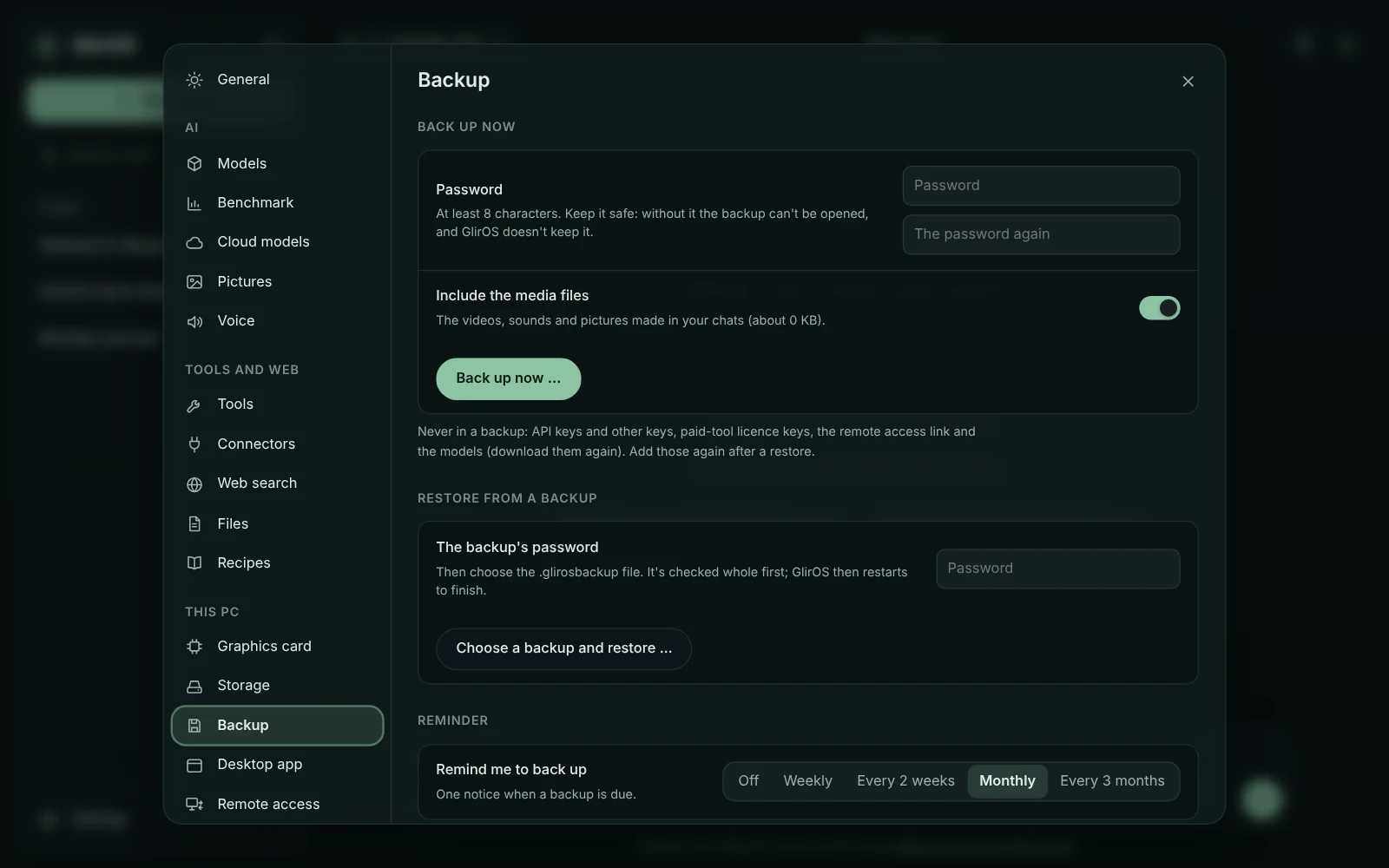
Settings > Backup makes one encrypted file with your chats, files and versions, pictures, code workspaces, tools, settings and, if you like, your media files.
Making a backup
Choose a password of at least 8 characters and keep it safe: without it the backup can't be opened, and GlirOS doesn't keep it. Save the file outside GlirOS's folders: another drive, a USB stick or a synced folder. API keys, paid-tool licence keys, the remote access link and the models are never in a backup; add them again after a restore.
Restoring
To restore, type the backup's password and choose the file: it's checked whole first. In the desktop app GlirOS then restarts to finish, and today's data is kept in a folder of its own until you delete it in Settings > Backup.
Web and desktop backups
In the web version the backup holds what GlirOS keeps in this browser (it downloads like any file; project folders and gallery folders on this device aren't in it), and a restore replaces that and reloads the page. A web backup restores into the web version, a desktop backup into the desktop app. A reminder comes when a backup is due (monthly by default; Settings > Backup changes it).
This guide is the same text GlirOS itself uses to answer questions about GlirOS.