How it works
Keep your chats safe: back up GlirOS
One encrypted file you keep yourself, and how to move to a new PC.
GlirOS keeps your chats, files and settings on your own PC, not on a server. Nobody else can read them, and GlirOS keeps working offline. It also means that if the disk fails, or the PC is lost, they are gone, unless you have a backup. GlirOS makes one: the desktop app from 0.1.6, and the web version from 0.1.8.
Make a backup
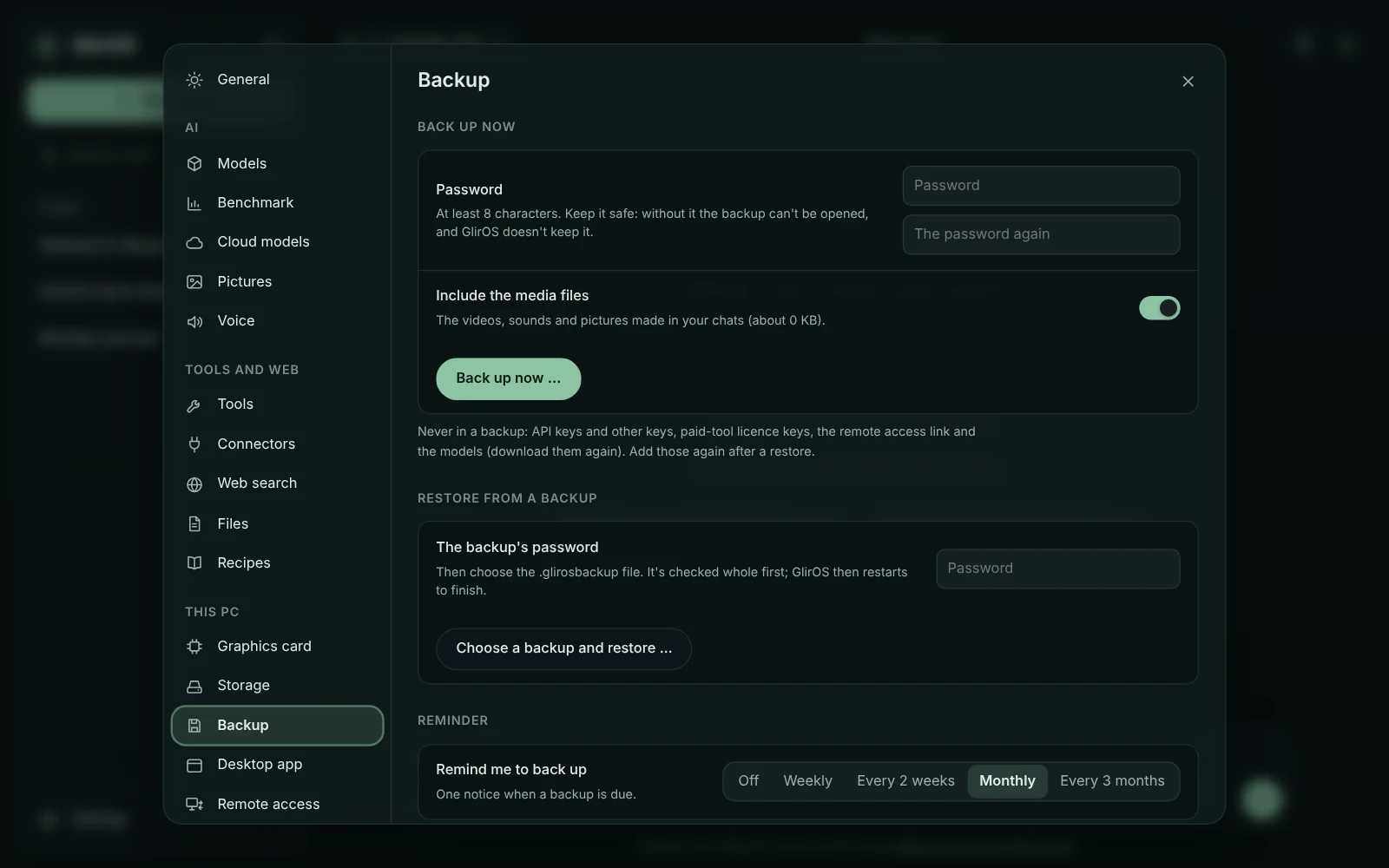
- Open Settings > Backup and choose Back up now.
- Type a password twice, at least 8 characters. Keep it safe: without it the backup can't be opened, and GlirOS doesn't keep it, so nobody can get it back for you.
- Choose whether to include your media files (videos and sound from the chats). They can be big.
- Choose where to save it, outside GlirOS's own folders: another drive, a USB stick or a synced folder (OneDrive, Dropbox and the like). A backup on the same disk doesn't help if that disk fails.
You get one file, GlirOS backup <date>.glirosbackup. It's encrypted with your password, so it's safe to keep in a cloud folder.
What's in it, and what isn't
- In it: your chats and their files and versions, pictures, code workspaces, tools you added, your settings, benchmark results, and, if you chose them, your media files.
- Never in it: API keys, licence keys for paid tools, the remote access link, and the AI models. Add the keys again after a restore, and download the models again.
A reminder
GlirOS reminds you when a backup is due: monthly by default, or weekly, every two weeks, every three months or never (Remind me in Settings > Backup).
Restore, or move to a new PC
- Install GlirOS on the new PC (or open it on the old one).
- Open Settings > Backup > Restore from a backup, type the backup's password and choose the file.
- GlirOS checks the whole file first. Then choose Restart now: the restore finishes when GlirOS starts again.
- Add your API keys and licence keys again, and link the PC to your account again if you use remote access (home.gliros.com > Devices).
What you had before the restore isn't thrown away: it's kept in a folder of its own until you delete it in Settings > Backup.
The web version
In the web version your chats are kept in the browser, and clearing the site's data there deletes them. From GlirOS 0.1.8, Settings > Backup works there too:
- the backup is encrypted in your browser with your password before it's saved, and it downloads like any file;
- it holds what GlirOS keeps in that browser: chats, files and versions, pictures, code workspaces, settings and, if you choose, the media files. Folders you linked on the device (projects, the gallery) aren't in it, and API keys never are;
- restoring it replaces what's in that browser and reloads the page.
A web backup restores into the web version, and a desktop backup into the desktop app. See Backup and restore in the guide.