How it works
Moving from ChatGPT to GlirOS
Bring your old chats along, pick a model, and keep a backup.
You can bring your ChatGPT conversations into GlirOS and carry on from there. It takes three steps: export from ChatGPT, import into GlirOS, then keep a backup. It works in the web version and the desktop app, from GlirOS 0.1.6.
1. Export from ChatGPT
In ChatGPT, open Settings > Data controls > Export data. ChatGPT emails you a link to a zip file; download it. It can take a while to arrive.
2. Import into GlirOS
In GlirOS, open Settings > Chat history, press the import button and choose the zip, or the conversations.json inside it.
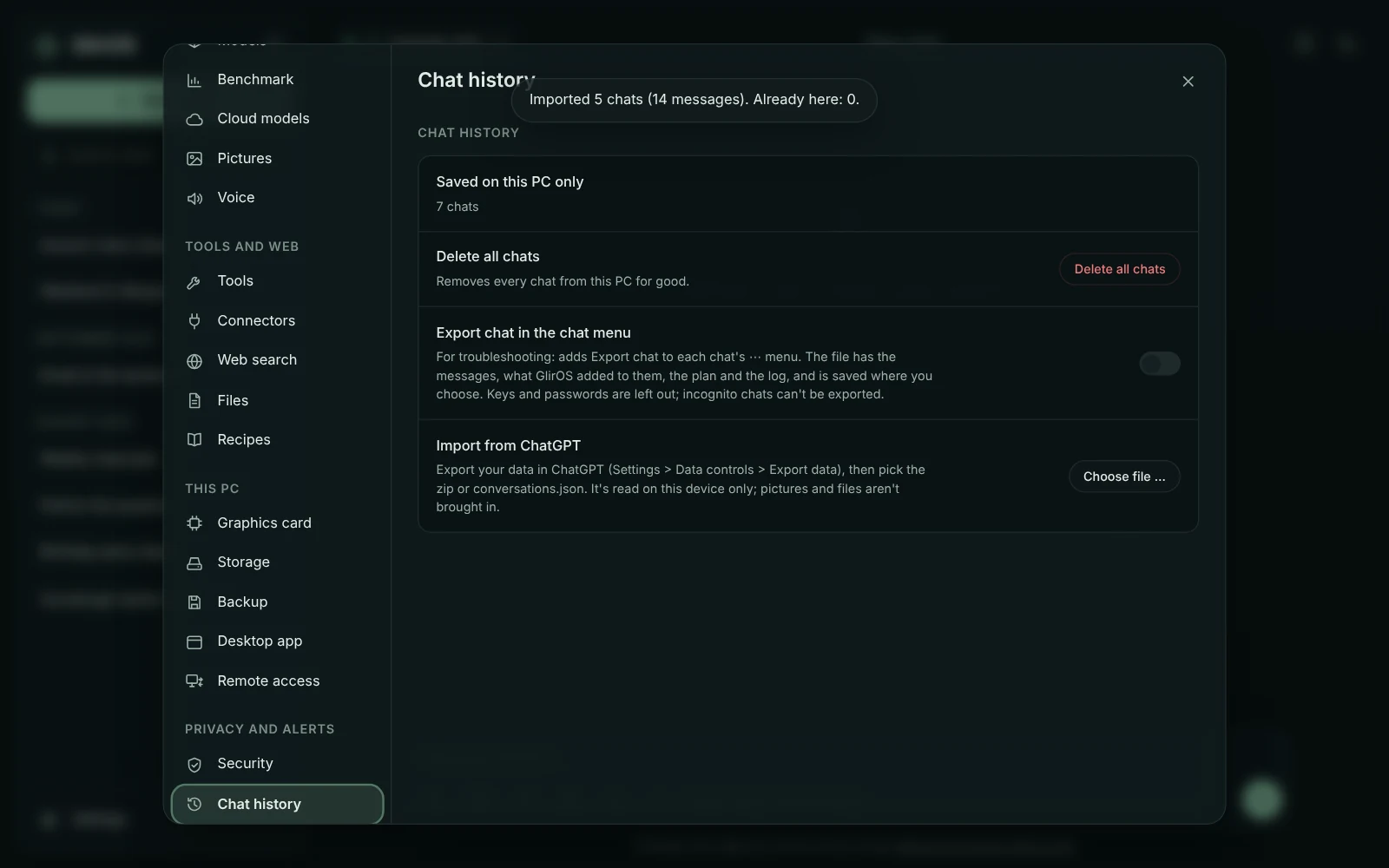
- Each conversation becomes a GlirOS chat with its title, its times and its messages, the way you last saw it.
- Pictures and files from the export show as [picture] or [file].
- The file is read on your device only. Nothing is sent anywhere, not to GlirOS and not to anyone else.
- Importing the same export again adds nothing new, so you can import a newer export later without getting doubles.
See Bring your chats in the guide.
What doesn't come along
The import doesn't bring in ChatGPT's memory or your custom GPTs. Your chats are all there, and GlirOS can read them when you open one. To bring what ChatGPT remembered about you, paste its memory list in Settings > Memory > Bring your memory from another assistant (see Memory across chats).
3. Pick a model
GlirOS runs AI models on your own device, or a cloud model with your own API key (see Cloud models with your own API key and Getting an API key). Not sure which model suits your PC? The desktop app's benchmark runs the same test on each (see How the benchmark works).
4. Keep a backup
Your chats now live on your own device, not on someone else's server. That's the point, and it also means one broken disk could lose them. Settings > Backup makes one encrypted file you keep yourself, in the desktop app and (from 0.1.8) the web version. See Keep your chats safe: back up GlirOS.