How it works
How remote access works
Open GlirOS on your own PC from a browser anywhere, end-to-end encrypted.
Remote access lets you use GlirOS on your own PC from a browser anywhere: on a laptop at work, or on a phone. No port forwarding and no admin rights are needed. Your PC keeps one outgoing connection to the GlirOS relay, and everything that passes between your browser and your PC is encrypted end to end.
Linking your PC (once)
- Sign in at home.gliros.com, open Devices and choose Link a new device. You get an 8-character code that works once, for 10 minutes.
- In GlirOS on your PC, open Settings > Remote access and type the code.
- Give the PC a name and choose Link. Then switch on Allow remote access.
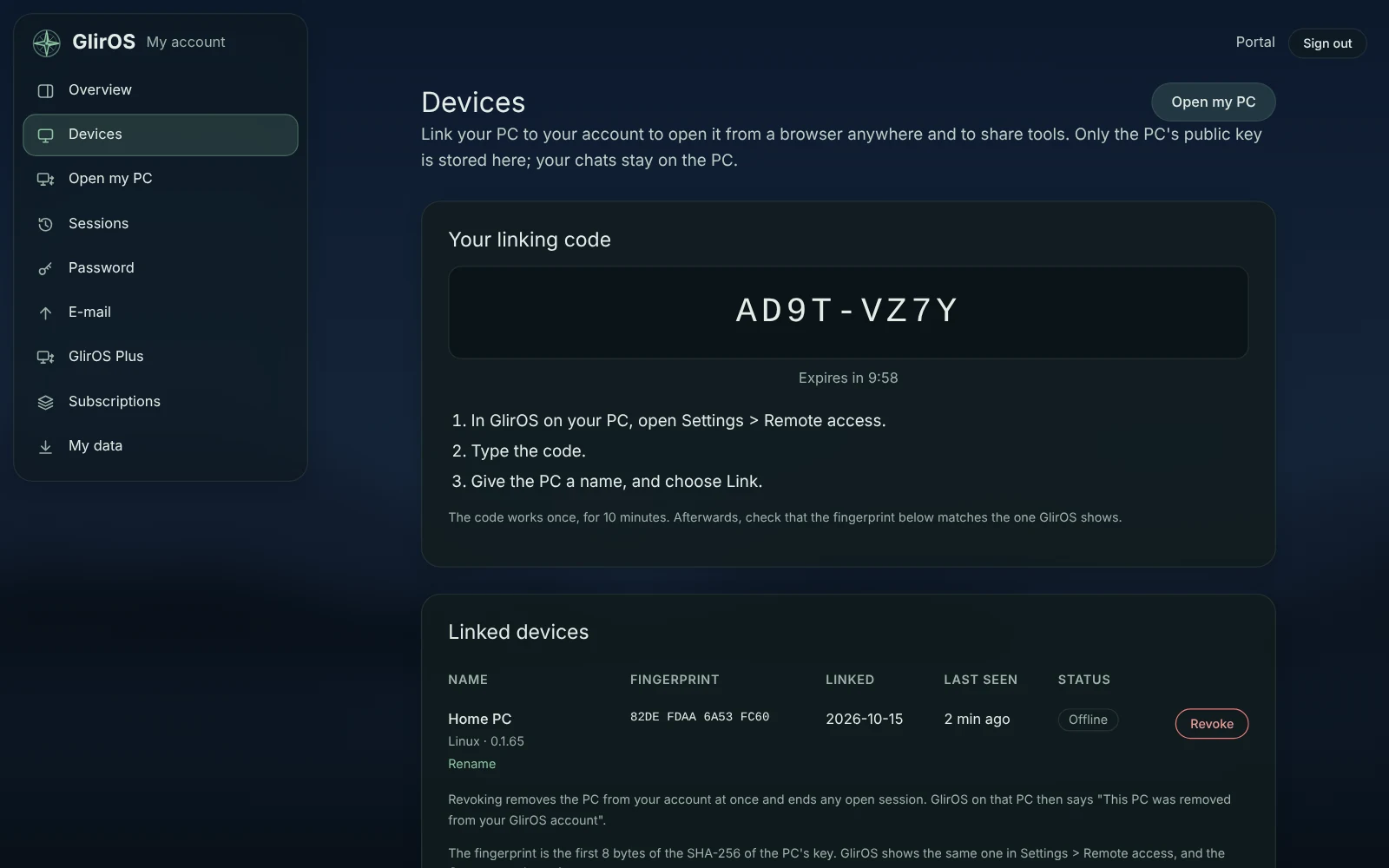
Linking needs a GlirOS account with a confirmed e-mail address. The app makes its own key pair and sends only the public key to your account. The private key never leaves your PC.
Opening it from a browser
- Sign in at app.gliros.com. Your linked PCs are listed, Online or Offline. A PC is online while GlirOS runs on it with remote access allowed.
- Choose Connect. The page shows the PC's key fingerprint, for example
0517 C848 DD4F 4FAF. - Compare it with the fingerprint in Settings > Remote access on the PC (home.gliros.com > Devices shows it too). If they differ, stop.
- The first time you open it from a browser, the PC asks. At the PC, press Allow when GlirOS asks (it shows a fingerprint for the browser, the same one the browser shows). Or, at the PC, open Settings > Remote access > Allowed browsers > Make a code and type the 8-character code in the browser; it lasts 10 minutes. After that, the browser goes straight in. A private window, or a browser whose site data was cleared, is asked again.
Your PC's own GlirOS then fills the page, served by your PC through the encrypted connection. On the PC, a Windows notification says when a session starts and ends, and Settings > Remote access shows In use from a browser with End session.
What can't be done from afar
Folders, model files, Settings > Security and remote access itself can only be changed on the PC. Settings > Security > Block all network traffic also stops remote access.
How it is built
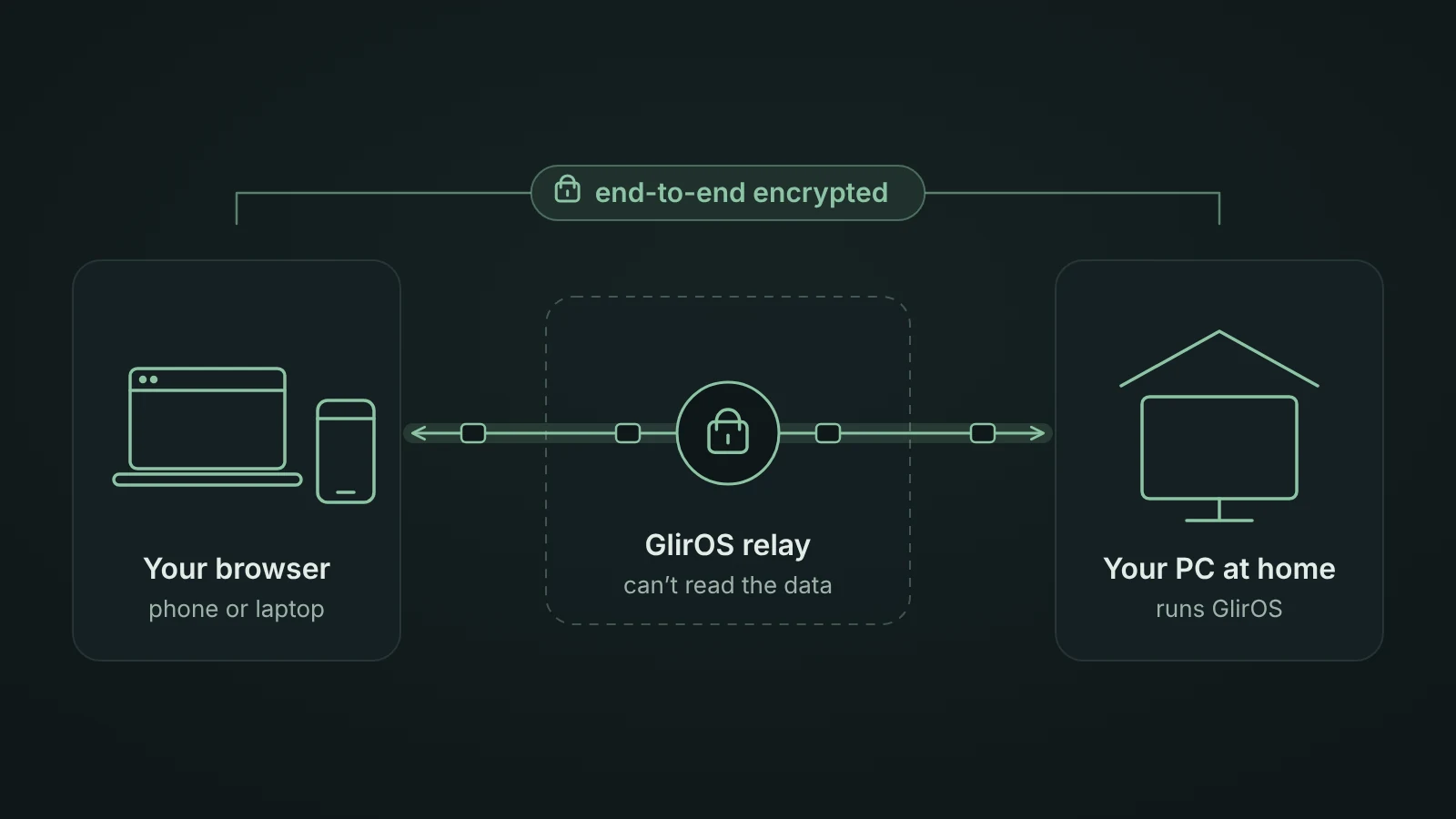
- Your PC proves who it is to the relay with its key.
- Your browser gets a one-time ticket, valid for 30 seconds, that works only for your own PC. It carries a grant that GlirOS's account service (app.gliros.com) signs for this one connection, and your PC checks it, so the relay alone can't open a session.
- The browser and the PC agree on a fresh encryption key between themselves (X25519), and the PC signs it with its device key (Ed25519), so nobody in between can pretend to be your PC.
- Each browser then proves itself to your PC with a key of its own (Ed25519), made in the browser, which can't be copied out of it. From GlirOS 0.1.53 your PC lets in only the browsers you have allowed, and the list of them is kept only on your PC.
- Everything after that is encrypted with XChaCha20-Poly1305. The relay only passes encrypted data on. It can't read it, and it keeps nothing of it.
- The PC's interface is shown from remote.gliros.com, a separate site of static files that stores nothing and sets no cookies, so a tool's page can never reach your account.
Removing a PC or a browser
Revoke under Devices on home.gliros.com removes the PC from your account at once, including a session that is open right now. Unlink in Settings > Remote access forgets the key on the PC; revoke it on home.gliros.com too.
Removing a browser from Settings > Remote access > Allowed browsers on the PC ends its session at once, and it has to be allowed again next time.