Pictures, video, 3D and voice
Video and sound: media jobs, Media Studio and the timeline
GlirOS edits video and sound for you: ask in the chat, or work in Media Studio, its editor in the side panel with a timeline, effects, faces and export presets.
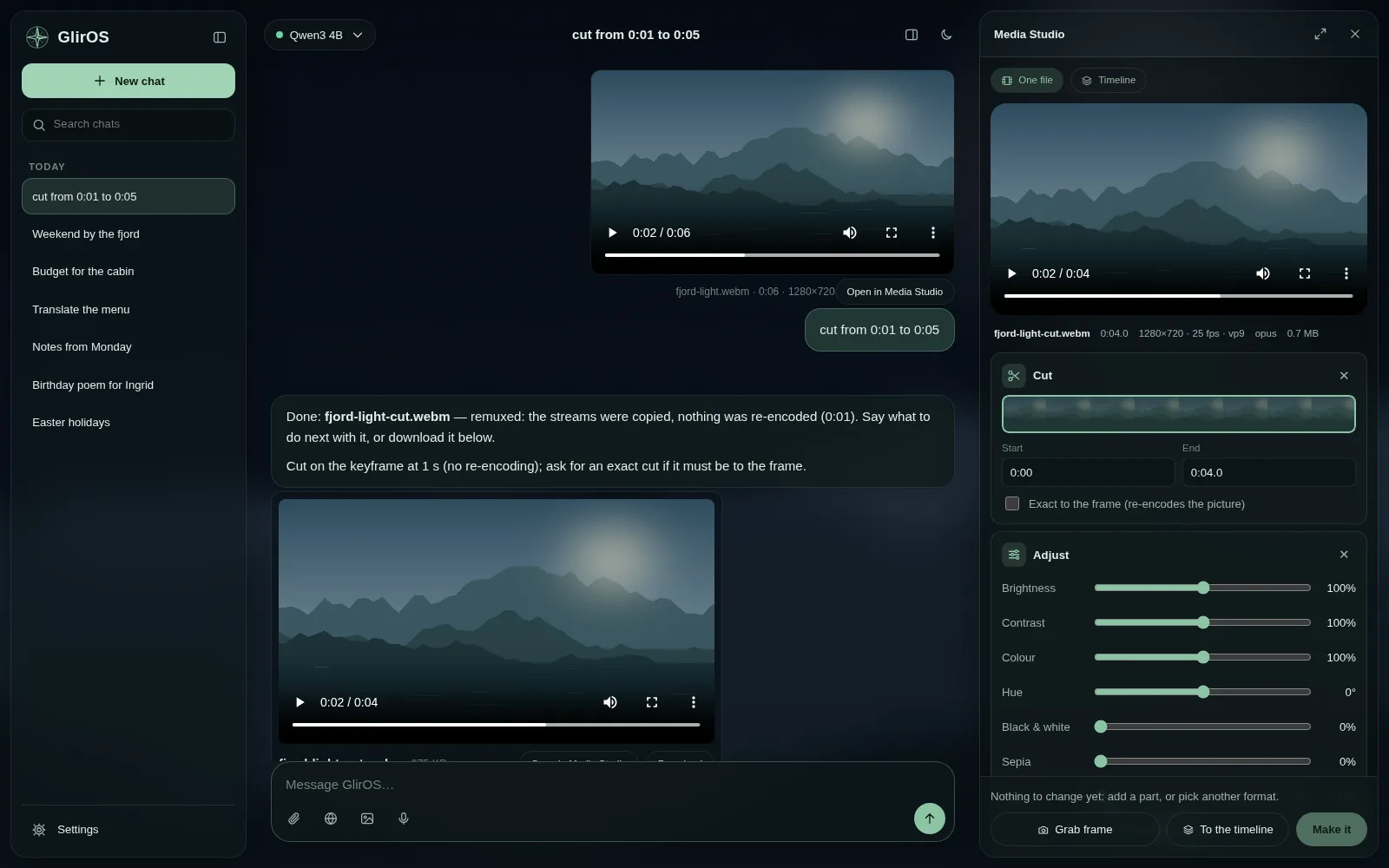
Media jobs in the chat
Add a video or sound file and ask: "cut from 0:10 to 0:40", "convert to mp4", "make it black and white", "extract the sound as mp3", "compress to 25 MB", "make a gif" – GlirOS does it itself and puts the new file under its answer.
A video added without saying what to do with it: GlirOS asks – describe the content (a model that sees pictures), transcribe the audio as subtitles (on this device), edit the footage in Media Studio, translate what is said (subtitles, then translated), or translate the text shown.
A green-screen job in one message: "remove the green screen, put beach.jpg behind, name bars, fade to black, separate files" with the videos in the chat gives the plan for each video and a card that asks once for anything missing; Make renders them all, each into the chat, and each can be opened in the timeline.
Slideshows
GlirOS makes slideshows itself, in the chat (no tool to switch on): add pictures and clips (or send a group from the Media gallery) and ask "make a slideshow of these" – "calm", "quick" or "fit it to the music" and a title in quotes are understood; "all these" takes the message's files and the chat's earlier ones. One card asks the rest: the pace, your own music file (Fit to the music makes the slideshow as long as the song), the title, the shape (as the pictures, 16:9, 9:16 for phones, square; a tall or square shape keeps what stands out in each picture) and a slow zoom on each picture. Make it puts the MP4 in the chat; Open on the timeline shows the same project, where each picture's Slow zoom (None, In, Out) can be changed, and "make the pictures 5 seconds" sets each picture's length. One message takes 8 pictures and 3 clips; a slideshow takes 24 at most.
Media Studio and the timeline
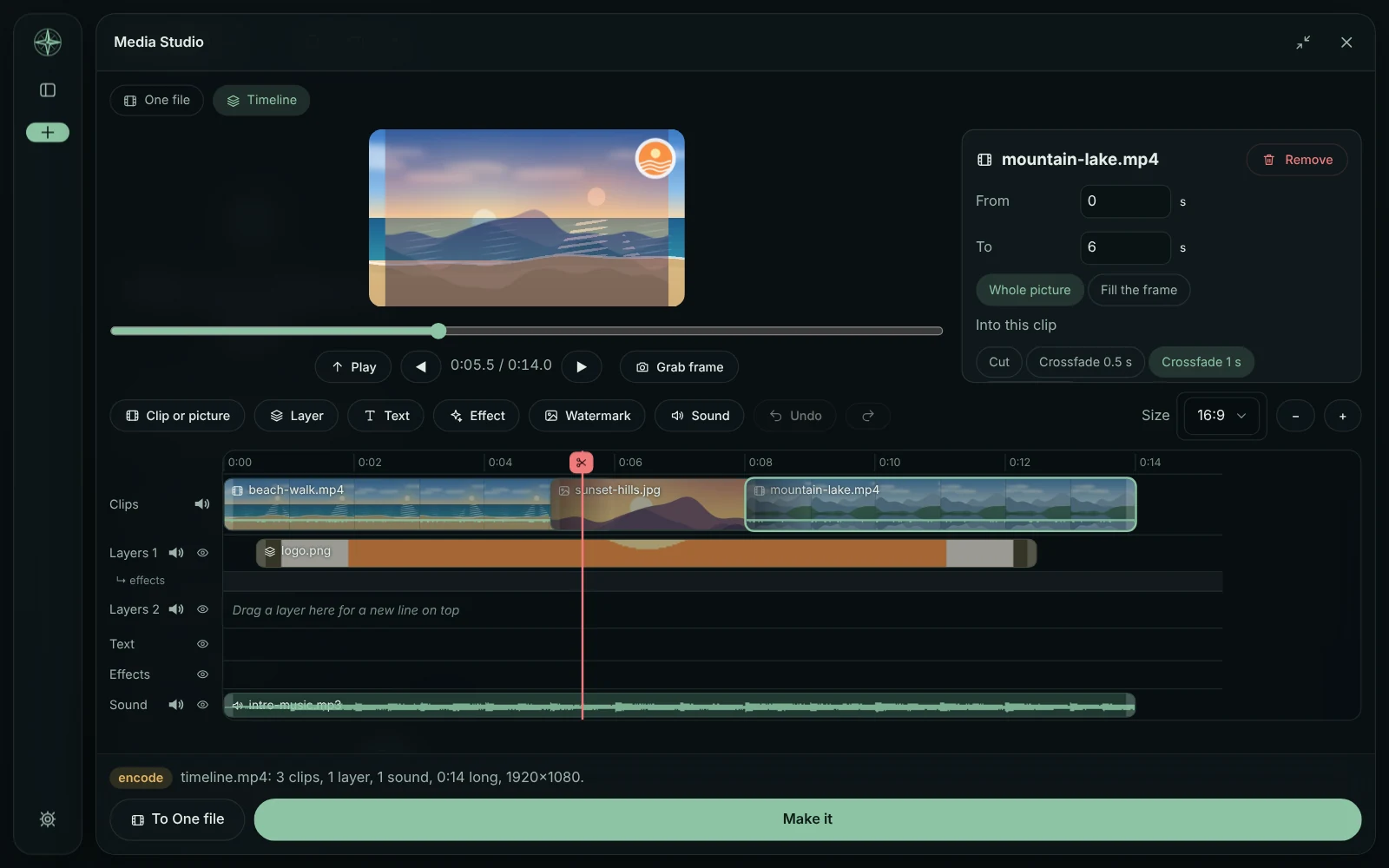
Media Studio ("open the media studio", or Open in Media Studio on a result) shows the parts in use in the side panel or full screen. Its Timeline mode joins clips and picture blocks one after another, with crossfades, layers on top (a logo, a frame) and music under it; "join the clips" does it from the chat, "put the clips on the timeline" opens them there. Pictures from the chat or the picture tool go to the timeline with To the timeline or by dragging.
Looks: the Looks menu (One file's Colour, a clip's Looks on the timeline) lists 26 looks with a small preview of each on your picture – the ten colour looks, Film (Old film, Cinematic, Faded warm, Dreamy, Grain, Vignette), Print & art (Newspaper, Sketch, Emboss, Posterize, Pixel art) and Fun (Heatwave, Thermal, Negative, Mirror, VHS). A look sets the colour values and opens the effects it uses (Grain, Vignette, Frame bars, Soften / glow …) as their own panels under Colour, marked "From the look"; a dot shows when you have changed something, Reset puts the look back, ✕ takes one effect off, and Save as mine keeps the set under a name. Add an effect… opens one without a look.
A layer on the timeline can have its own colour and look too (its see-through parts stay). In the chat: "make it look like an old film", "heatwave" – on the file open in One file, or on the timeline's chosen clip or layer.
On the timeline, a chosen clip or layer shows its name once with what is on it ("On this clip: Colour · Looks"; × takes a part off), its own settings, then each part as a panel with fold, Reset (neutral values, the part stays) and Remove. The parts rail on the side (Colour, Looks, Crop, Key) adds a part with one tap and shows a dot when the part is on the clip; a tap on a lit part (or P) hides its panel, and hiding never takes the part off: its chip stays. Add a part still lists One file's parts too.
The Workspace menu, top right on the timeline, keeps the panels you want in view: Edit (1, panels come with the clip's parts), Colour (2: Colour and Looks stay), Key (3), Sound (4), Text (5) and Export (6), and your own (Save workspace…, Update, Manage…). A workspace is only which panels are pinned, hidden and folded, never a clip's values; a pinned part that isn't on the chosen clip shows quiet with + Apply to this clip (or just move a slider). In a workspace other than Edit the rail pins and unpins. Each chat remembers its workspace; "open the colour workspace" works in the chat too. Ctrl+click more clips to change them together; Copy parts and Paste parts (top of the side) put one clip's parts on others; drag a panel's header (or Alt+↑/↓) to reorder, and P pins.
One file has the same side: "On this file" with its parts, the parts as panels and the rail (a part the file can't take is greyed and says why), and the same Workspace menu and keys 1–6 on its bar. A pinned part that isn't on the file shows quiet with + Add to this file. Your own workspaces are one list for One file and the timeline.
Media Studio's pickers (One file with nothing open, the picture or video a face swap or age change works on, and the timeline's Add menus) also have Paste (a copied picture; Ctrl+V in the panel takes a copied file too), Take a photo, and Record a clip: a short video from the camera, at most a minute, with sound if you like, saved as an MP4 (offered where the browser can record MP4: the desktop app, Chrome, Edge, Safari). The camera and microphone are off again as soon as you are done, and nothing leaves this device.
The desktop app uses ffmpeg (every format, big files) and has AI add-ons (Settings > Tools > Media: AI upscaler, face enhancer, face swap, face age); the web version works in the browser with common formats. In Media Studio, layers and texts are placed by dragging them in the preview (they snap to the middle and the edges) and resized by their corner. A clip's place in the order changes by dragging it, or with the keyboard: choose it and use Earlier / Later in its part, or Ctrl+← / Ctrl+→.
Effect text (karaoke that marks the word being said, neon, bounce, shake, wave; your words or pasted subtitles) and effects over a time (fade from or to black, black and white, sepia, blur, vignette, a slow zoom) work in both One file and Timeline mode; a file's texts go to the timeline with it, still editable. Grab frame turns the moment shown into a picture for the chat, the picture tool or Media Studio (faces, crop).
Long jobs, parts and face swap
A long job's bar shows the percent, the time spent and about how long is left, with Pause / Go on, Stop and save (the job ends now and keeps what is made so far as a whole file – a video up to that moment, the stills made) and Cancel (nothing kept); in the desktop app the Windows tray icon lists every job with its percent when the pointer rests on it, and the taskbar button shows the progress while GlirOS is minimized. Clips that match (same format, size and sound) are joined by copying, in seconds.
On the timeline a clip's Add a part gives Colour and look and Crop right there; the other parts (AI upscaler, faces, face swap, age, sound) open the clip in One file, and Use on the timeline puts the result back in its place. Any clip or layer also has Open in One file (a layer's picture with its background removed goes back as the layer), and One file's Another file… works on another picture or clip from the chat while the timeline stays as it is; To the timeline then adds it. In the face swap part, Change and Remove sit next to the face used, and the file worked on has its own Change.
Face swap's Fine-tune (desktop app) has How it is pasted: Most like the source (the default, the old face swap web tool's way) or Smoother (softer pastes, calmer on video, a little less like the source); a Restorer amount (50 % at first: lower keeps more of the source face's likeness, higher is sharper and cleaner); and Keep anything in front of the face (off unless ticked; then a level: low keeps only what is clearly in front, high keeps more). When the chosen person isn't recognised (closed eyes, a turned head), Media Studio says so. Its AI steps also have Stronger likeness on Swap (the swap runs twice: a little more like the person, less of the face it replaces, about twice as long) and Detail under Restore (the swap made at up to four times the size: sharp and the most like the person, but slower).
Results, hiding parts and following a person
A result shows in Media Studio at once, with Original and Result to compare and Save as… to keep the file; Keep working on this keeps the parts and settings, with Back to the original. Export's "Save this file as it is…" saves a GIF as a GIF, and a GIF put on the timeline goes on as an .mp4 copy. Moving to another chat empties Media Studio, so nothing from an incognito chat stays.
In Media Studio each part that shows in the preview (Crop, Colour, Text, Effects) has an eye in its panel's header that hides it in the preview only, and holding Original (or the \ key) shows the picture untouched. On the timeline, a line's eye switches that layer line, text line, effects row or sound row off: dimmed, not in the preview, and left out of the finished video.
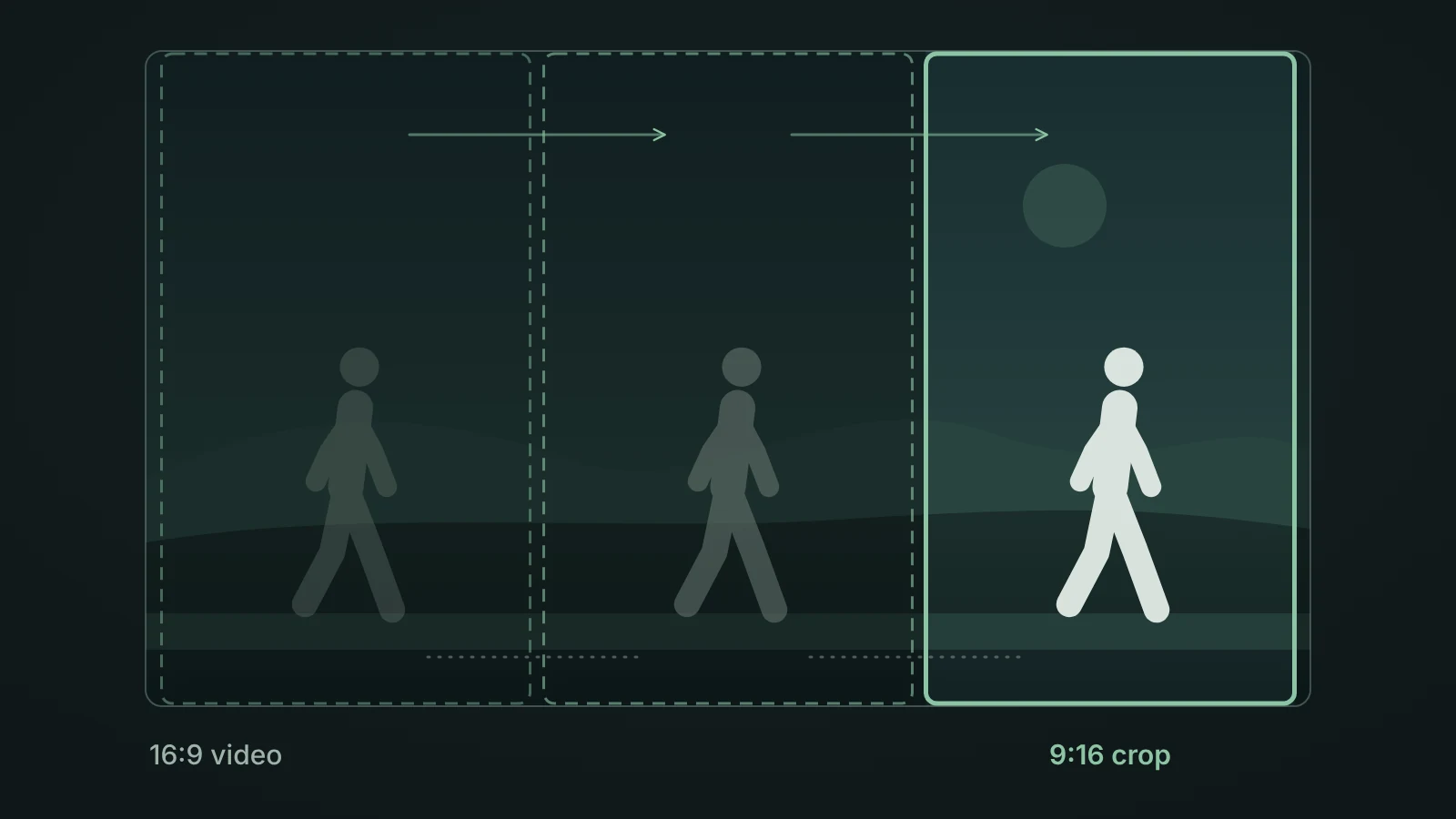
A crop to 9:16, 1:1 or 4:5 can follow the main person as they move: tick Follow the person under Crop (in One file, or on a timeline clip), or say "crop to 9:16 and follow the person" in the chat. The faces are found on this device: in the desktop app by the small Face finder add-on (0.2 MB), asked first; the web version has it built in.
Export and sharing
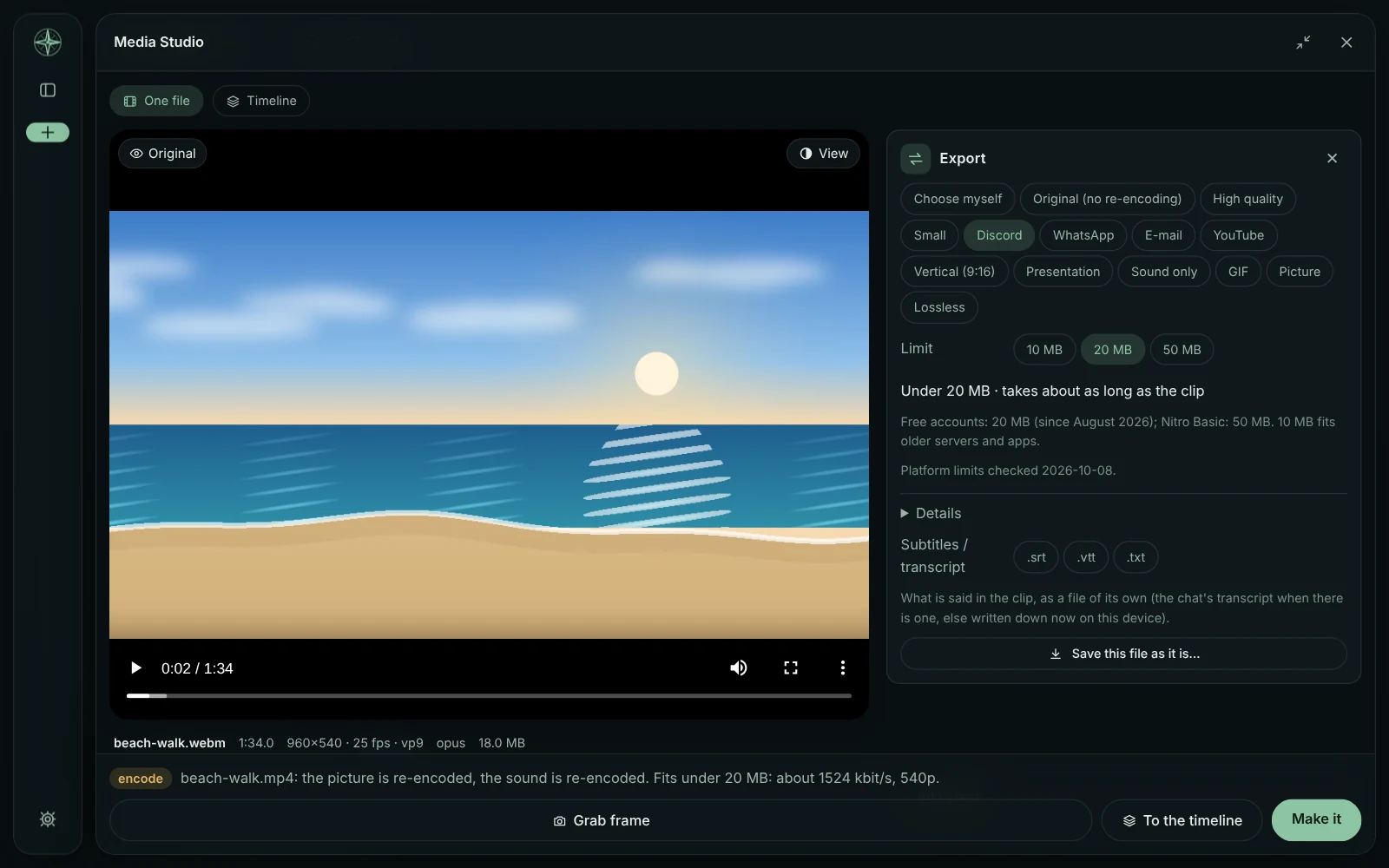
Export (Media Studio's part, once called Format and size) has presets for where the file goes: Discord (10, 20 or 50 MB), WhatsApp, E-mail, YouTube, Vertical 9:16 (TikTok, Reels, Shorts), Presentation, Sound only, GIF, Picture, High quality, Small, Lossless (desktop app) and Original (no re-encoding). A line says about how big and how long; Details change the format, resolution, codec, quality and frame rate (the name then says Custom). A file made for a size limit is checked afterwards and made once more, a little smaller, if it went over.
In the chat: "make it fit Discord", "for YouTube", "make it vertical for TikTok". Vertical's Shape: Crop the middle, Blurred sides (the whole picture over a blurred copy; desktop app) or Follow the person; "Show where the apps put their buttons" marks the part TikTok, Reels and Shorts leave free. WhatsApp can go as a video (fits 15 MB) or as a document (full quality). Details also has Even out the volume (desktop app) and Remove location and camera data (on for the sharing presets).
Where it is kept
Media Studio belongs to its chat: the file, the parts and their values and the timeline are kept with the chat (the media itself stays in the chat's files), so opening the chat again brings the panel back as it was, also after a restart. Chats with a Media Studio setup have a small film mark in the chat list, and a project's chats work as its list of media projects. A job keeps going in the chat it was started in, even if you move to another chat. An incognito chat keeps nothing.
This guide is the same text GlirOS itself uses to answer questions about GlirOS.