Pictures, video, 3D and voice
Reading aloud and dictation
The speaker button under an answer reads it aloud; press it again to stop.
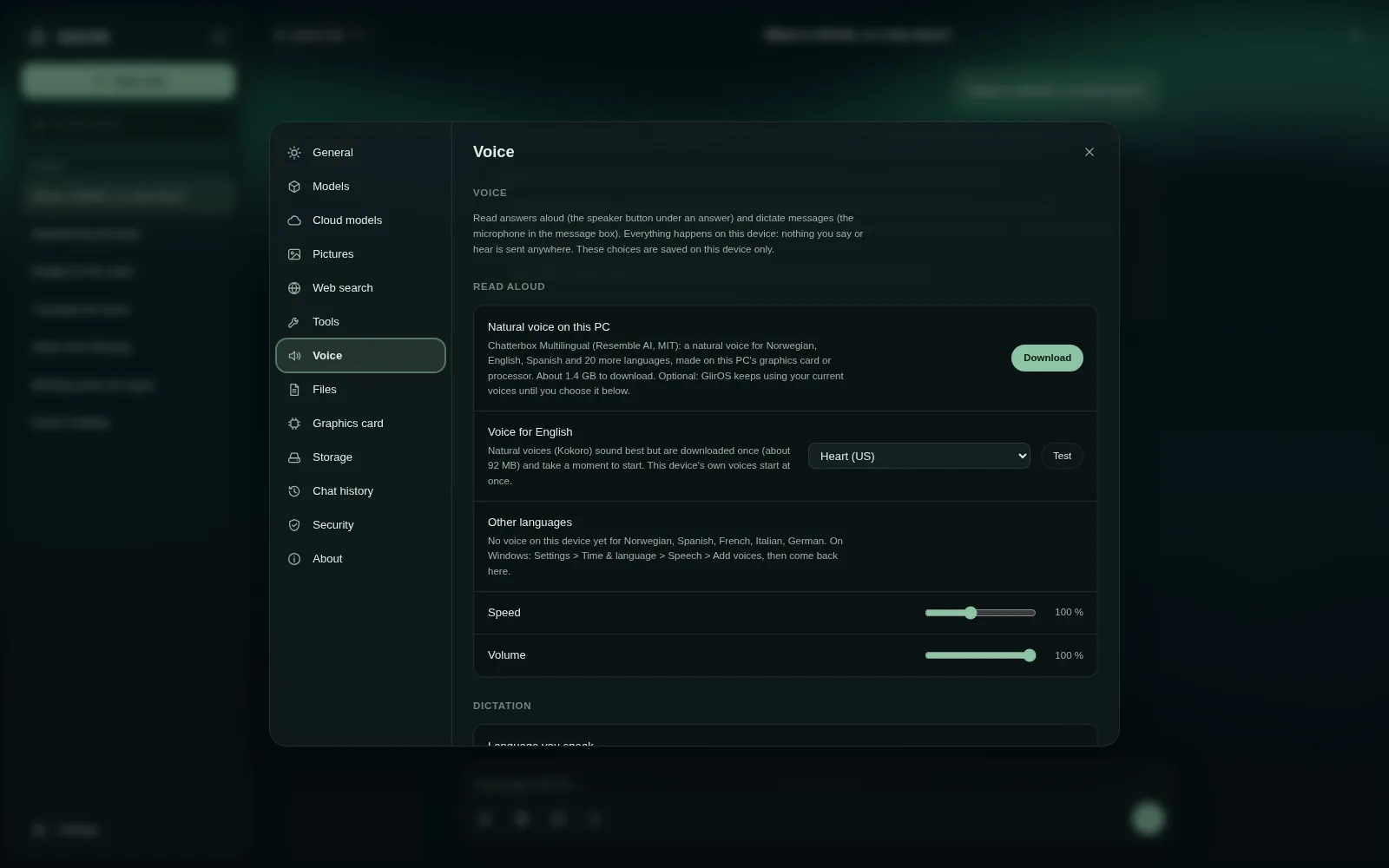
Voices for reading aloud
English can use a natural voice (Kokoro, downloaded once, about 90 MB, slower to start) or this device's own voices. Norwegian uses this device's own voices (on Windows: Settings > Time & language > Speech > Add voices).
Dictation
The microphone button in the message box takes dictation: talk, pause (or click again) and the words land in the message box to check and send; Esc cancels. Norwegian dictation uses NB-Whisper from the National Library of Norway, other languages OpenAI's Whisper, each downloaded once (about 80 MB).
Everything runs on this device; nothing you say is sent anywhere. Choose voices, speed, volume, the language you speak and the microphone in Settings > Voice.
Conversation mode in the desktop app
In the desktop app, the wave button opens conversation mode: talk hands-free with the model – it listens, writes down what you said, and speaks its answer while it writes it. Talk while it speaks to interrupt it (Settings > Voice), or type in the box at the bottom; Esc ends it.
In the desktop app, a Whisper model in the models\stt folder makes speech several times faster (Settings > Voice > Speech recognition on this PC).
This guide is the same text GlirOS itself uses to answer questions about GlirOS.