How it works
Finding your way: the screen, the menus and Settings
Where everything is in GlirOS, in the web version and the desktop app alike.
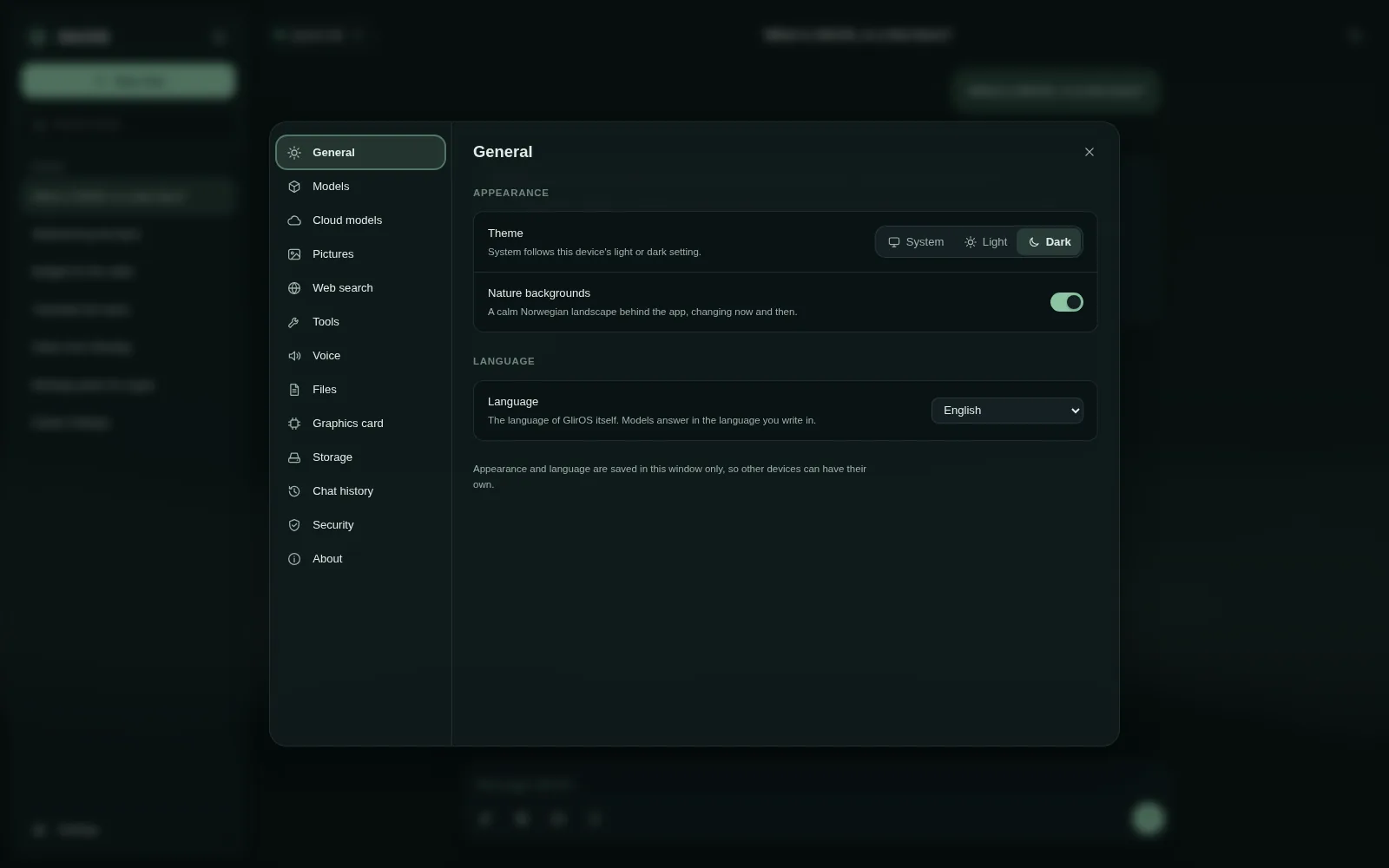
Both versions of GlirOS look and work the same way. This page is a map; each part has its own guide.
The screen
- The sidebar on the left lists your chats, newest first, with projects as folders at the top. The search box finds words in titles and messages. New chat (Ctrl+N) starts a fresh one. See Chats and the sidebar.
- The model menu at the top shows which AI model answers, and lets you pick another. See Which model you are talking to.
- The bell at the top collects what finished, what needs you and what failed: long answers, finished plans, downloads, media jobs, timers and tools. See How notifications work.
- The message box at the bottom takes your message, files you drop on it, dictation (the microphone) and, if you switch it on, the "/" list of tools.
- The side panel on the right opens next to the chat for code files, tools, Media Studio, pictures and tasks. See The side panel with files.
- Each chat's ⋯ menu in the sidebar renames, moves, deletes and (when switched on) exports the chat.
Settings
Settings is at the bottom of the sidebar (or Ctrl+,). The sections you will use most:
- General: theme, backgrounds and the language GlirOS speaks.
- Models and Cloud models: the models on your device, cloud models with your own API key, and Compare models (the same question to up to three models).
- Tools: switch tools on and off, and get more from the tool catalogue.
- Notifications: quiet hours, do not disturb, sound, which kinds and which tools may notify you.
- Web search, Voice, Pictures and Files.
- Chat history: how long chats are kept, and Export chat for troubleshooting.
- Remote access (desktop app): open this PC from a browser anywhere.
- Security: block all network traffic, offline chats and incognito chats.
- About: the version, What's new and the licences.
See Where the settings are for the full list.