AI models
Which model you are talking to
The model menu at the top shows which model answers.
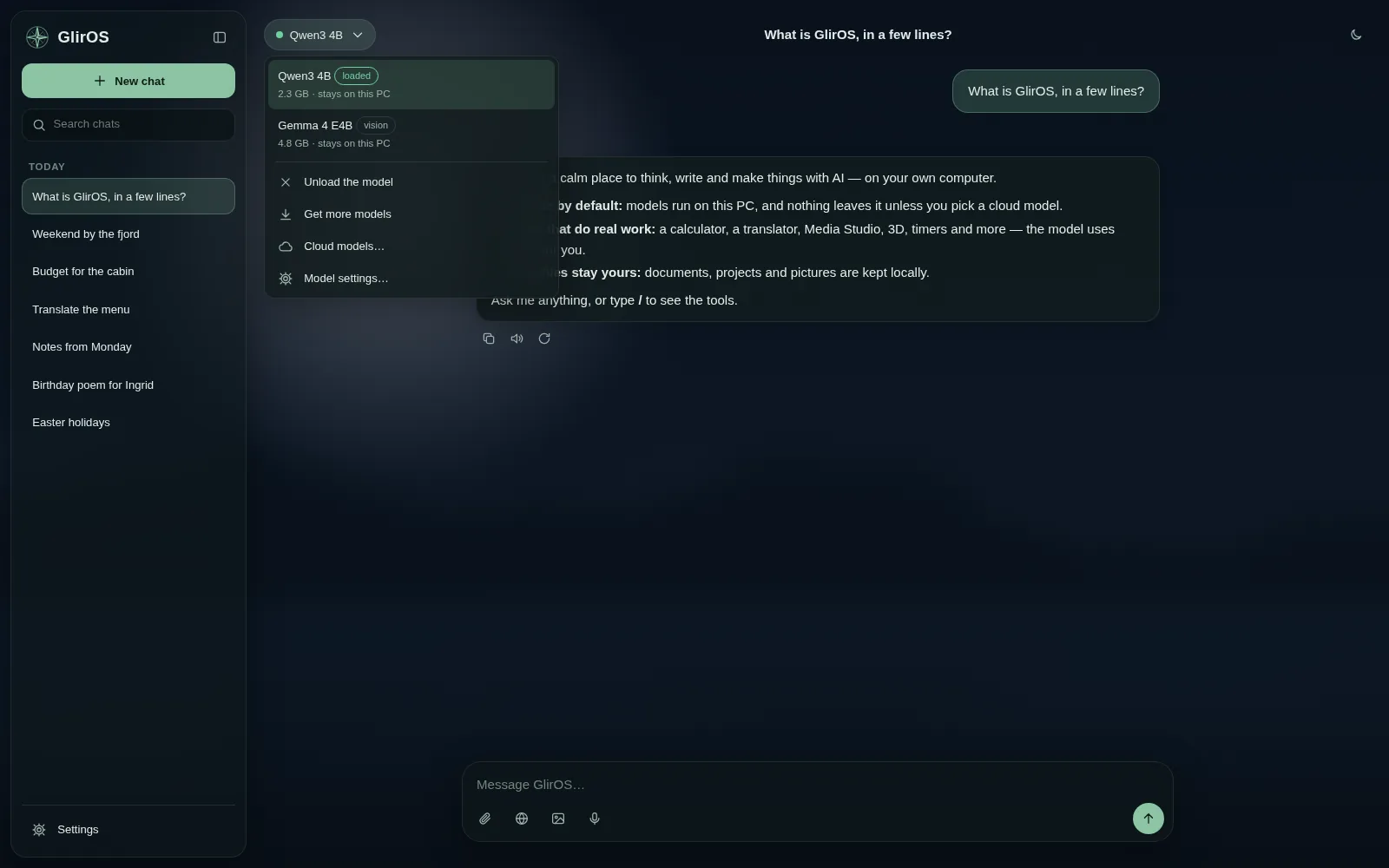
Every model in GlirOS knows its own name and maker, roughly when its training ends, and what GlirOS adds: web search and reading links (unless web access is switched off in Settings > Web search), files in the side panel, the current time, continuing long answers and condensing long chats. Ask it "what model am I talking to?" and it explains.
The Helper, bigger models and ratings
The GlirOS Helper is a small model on this device that knows GlirOS best; bigger models for the graphics card, cloud models with your own key and the desktop app give better answers for other work. When a chat gets stuck, GlirOS offers Condense and continue (the chat goes on from a summary, in the same chat) or another model.
Under each answer, the thumbs say whether it was good. Settings > Models > Advanced > Your ratings shows each model's thumbs and the comparisons it won, kept on this device.
A better prompt
Write "refine this prompt:" (or "lag en god prompt av dette:", "mejora este prompt:") followed by your words, and GlirOS helps you make a better prompt. A larger model gets GlirOS's own short prompt guide and writes the prompt; with a small model, GlirOS asks a few questions in a form (the goal, who it is for, the facts, the format …) and writes the prompt itself. Use this prompt puts it in the message box: change it or send it.
A model from a link
In the desktop app, Settings > Models > Advanced > Add a model from a link takes a model that isn't on GlirOS's list: paste its Hugging Face link (the model's page or a .gguf file). Before anything is downloaded, GlirOS shows the file, its size and how it would run on this PC, the licence and whether it allows commercial use, and a link to the maker's usage policy when there is one. When the model is built on another one, the card names that model too, and if its licence is stricter, that licence is the one that applies. Tick that you accept the maker's terms, and the file is downloaded and checked against what Hugging Face lists. The model then sits under "Added by you": GlirOS hasn't checked or tested it and never suggests it. Gated and private models can't be added this way: download them on Hugging Face and use Import a model.
This guide is the same text GlirOS itself uses to answer questions about GlirOS.