Files, code and projects
Tasks: your lists and GlirOS's plans in the side panel
Ask for a to-do list ("make a task list for the move", "lag en huskeliste") and GlirOS keeps it with the chat and opens it in the side panel's Tasks view: tick an item and it is struck through; add or remove items there.
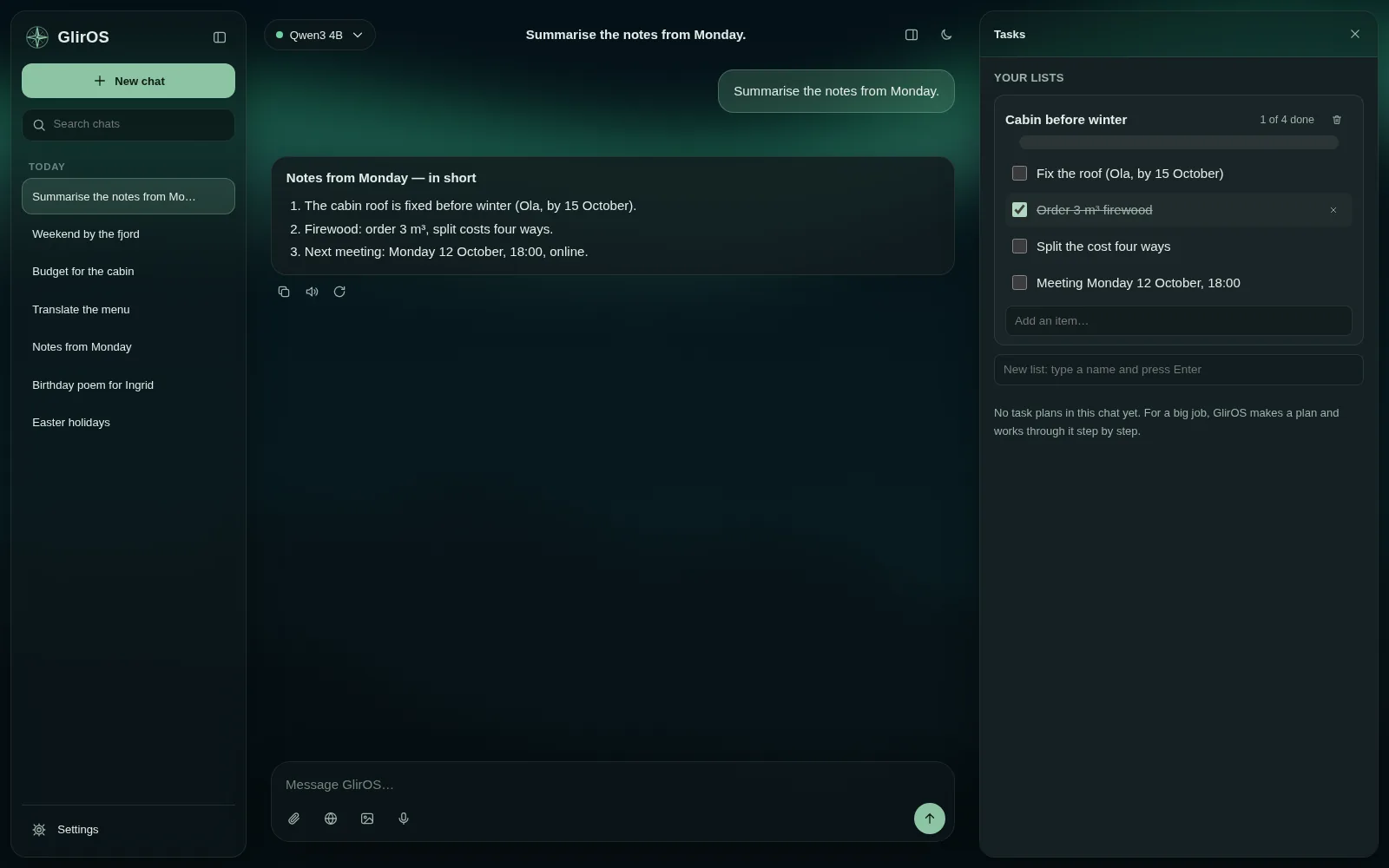
The model always knows what is done and what is left, so you can ask it to add things or tick them off. The Tasks view also shows every plan GlirOS made in the chat as a timeline: click a task to see what it did and the files it made.
You can add a task, or reword or skip one that hasn't started (a bigger wish is offered as several tasks, since each task is kept small for the model). Ask "how far have you come?" or "what's left on my list?" and GlirOS answers at once with a progress card, without using the model. Open the view from a plan card or a list card ("Open in side panel").
Due dates
A task can have a day it is due, and a time: say it ("put 'pay the invoice' on my list for Friday") or use the calendar button next to the item in the Tasks view, where the date can also be taken away. An overdue task is marked. A reminder that rings at a time is still Timers & triggers' job.
Due soon
At the top of the Tasks view, Due soon lists this chat's tasks that are overdue or due within 7 days, soonest first, and under "In your other chats" the same from your other chats, each with its chat's name (a click opens that chat). Tick them right there; each stays in its own chat's list. Incognito chats are never read, and GlirOS's own work plans are not tasks, so they never show here.
This guide is the same text GlirOS itself uses to answer questions about GlirOS.