Files, code and projects
The Code workspace: open a chat's files as a code project
Open as a code project (the Files panel, the code icon on the side panel, or "open this as a code project" in the chat) opens the chat's files – in a project, every chat's files – in a full-screen workspace.
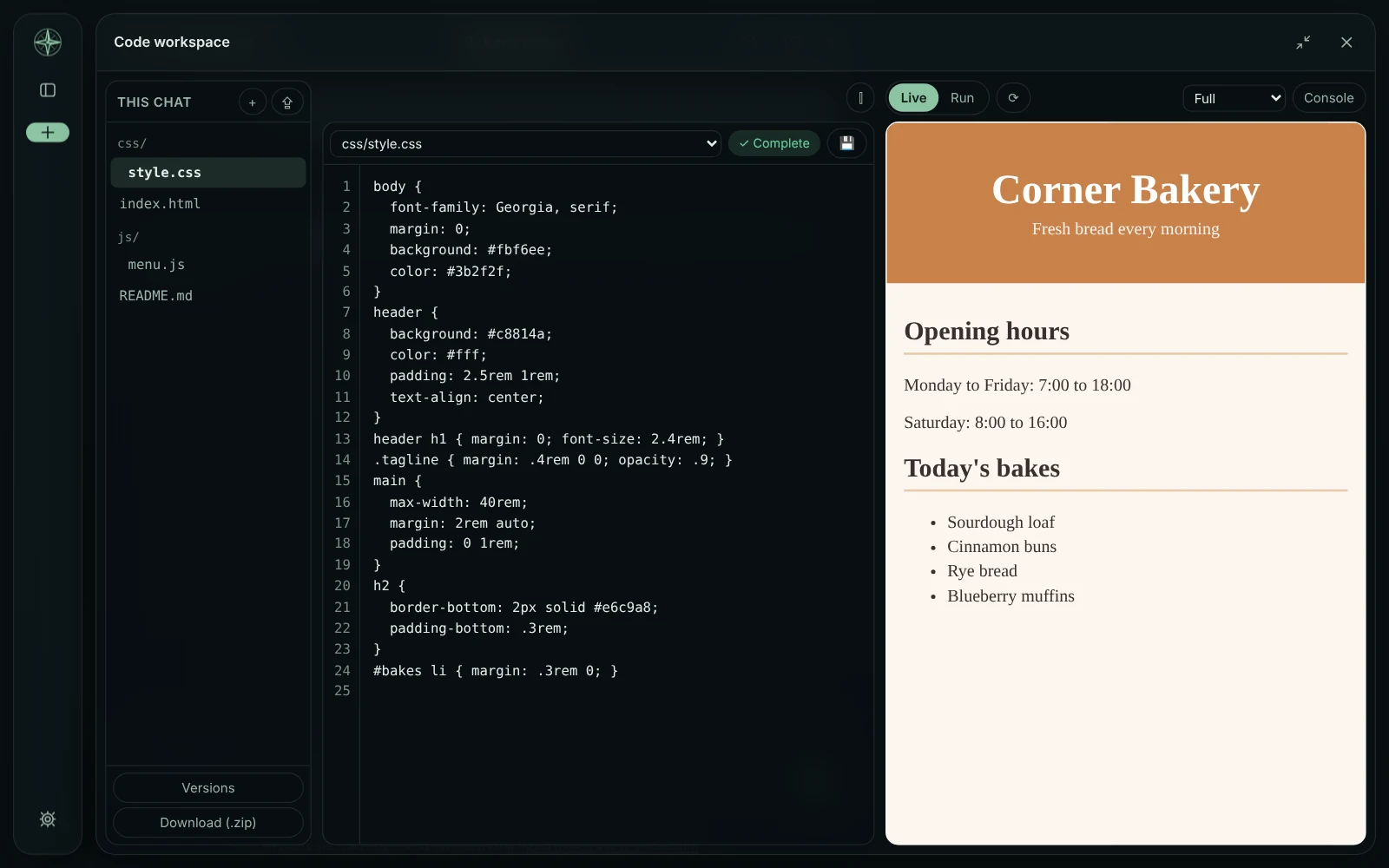
In the workspace
A file tree, one or two editors (⫿), the checker's badge on each file (Apply the fixes), and a big preview with Live or Run, the page list, phone/tablet widths and a console.
Saving and adding files
Ctrl+S saves a file as a new version in Files and versions; edits not saved when the workspace is closed are kept as one version. + makes a new file (a page links the CSS and scripts already there). Add files puts pictures, fonts and data into the workspace's own folder (not into Files and versions).
The preview as a real website
In the desktop app that folder is real (in GlirOS's data folder) and served by GlirOS, so the preview is a real website: relative links between pages, pictures, CSS url() and fetch() of a file next to it work. In the web version it is a virtual folder in the browser: pictures and data are put into the page and fetch() of a workspace file is answered there.
Download and save
Download (.zip) gives every file; Save to the project folder writes them into a linked folder (asking before replacing). A deleted chat's workspace goes with it.
This guide is the same text GlirOS itself uses to answer questions about GlirOS.