Getting started
Remote access: this PC from a browser anywhere
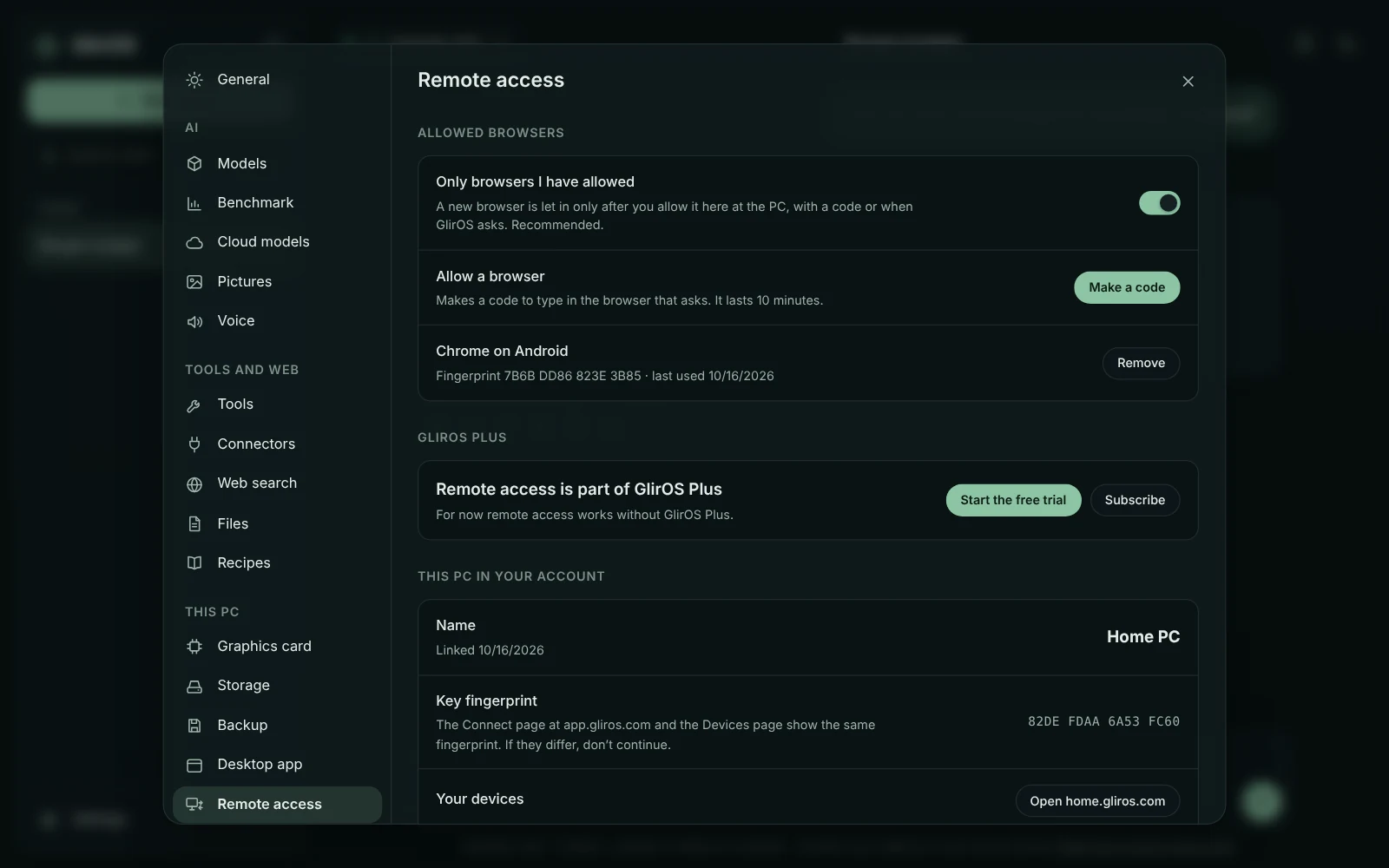
Settings > Remote access (desktop app) lets the user open GlirOS on their own PC from a browser anywhere, through their GlirOS account.
Linking the PC
To link: sign in at home.gliros.com, open Devices, choose "Link a new device" and type the 8-character code (it lasts 10 minutes) in Settings > Remote access, with a name for the PC. Then, while GlirOS runs and "Allow remote access" is on, the PC shows as online at app.gliros.com, and Connect shows the PC's own GlirOS in the browser.
How the connection works
No port forwarding and no admin rights: the PC keeps one outgoing connection to the GlirOS relay. Everything is end-to-end encrypted: the relay passes the traffic on without being able to read it; only the PC's public key and its name are kept in the account. The connect page and Settings > Remote access show the same key fingerprint, to compare.
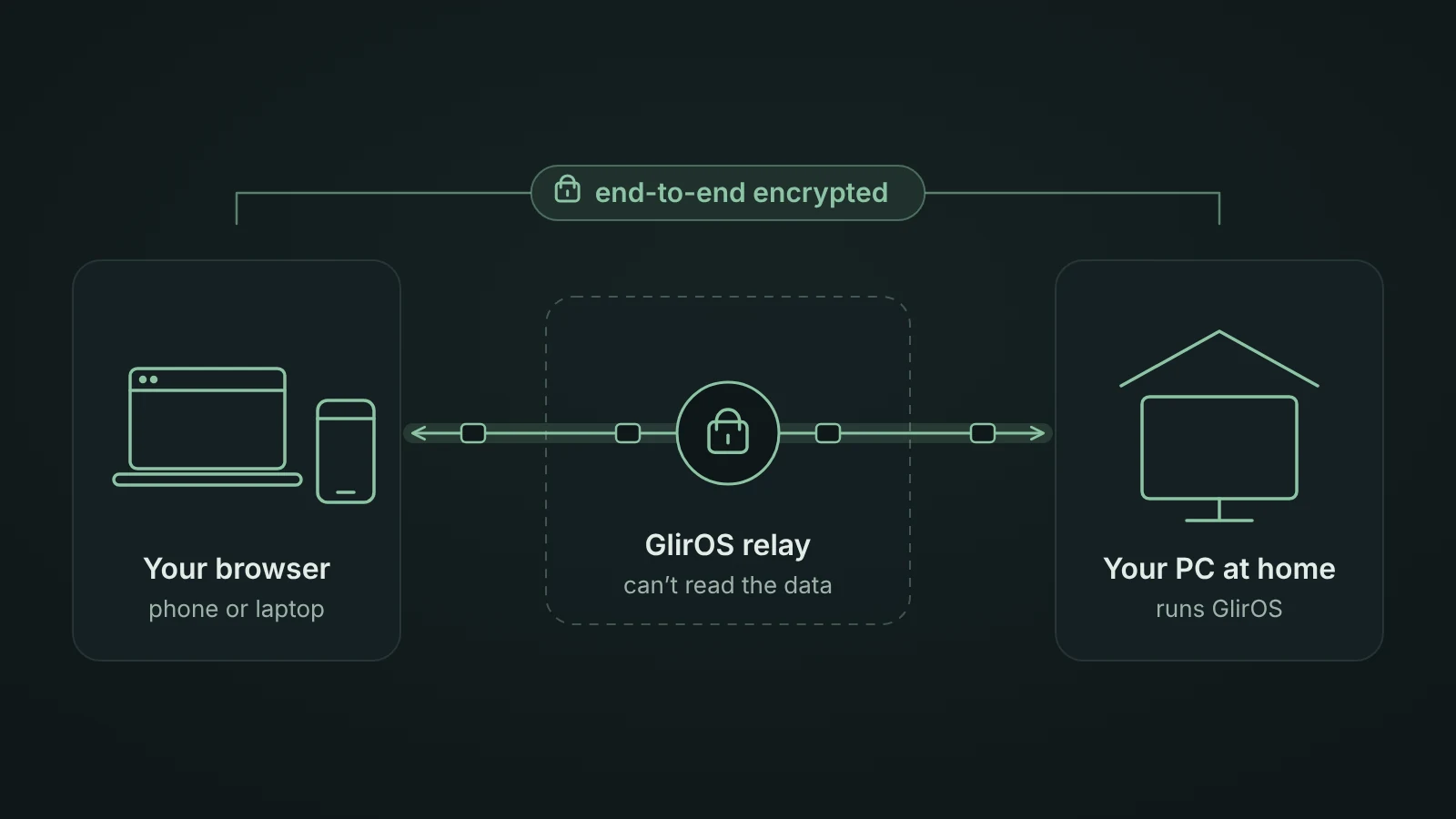
Remote access from anywhere goes through GlirOS's relay and works while the PC is on. For now it works without GlirOS Plus; you get notice before that changes. Settings > Remote access shows its status.
During a session
In the browser a green pill with the PC's name sits in the top bar, so it's clear this is the PC and not the plain web app; pressing it shows the connection and Leave. On the PC a Windows notification says when a session starts and ends, and while one is on the top bar shows "In use from a browser" (press it for End session; also in Settings > Remote access). Folders, model files, Settings > Security and remote access itself can only be changed on the PC.
Allowed browsers
Only browsers the user has allowed get in (Settings > Remote access > Allowed browsers, "Only browsers I have allowed", on by default): the first time a browser opens the PC, GlirOS on the PC asks "Allow remote access from <browser>?" with the browser's fingerprint (the browser shows the same), or the user presses Make a code there and types the code (8 characters, 10 minutes, 5 tries) in the browser. Each browser has its own key that never leaves it; the list of allowed browsers stays on the PC.
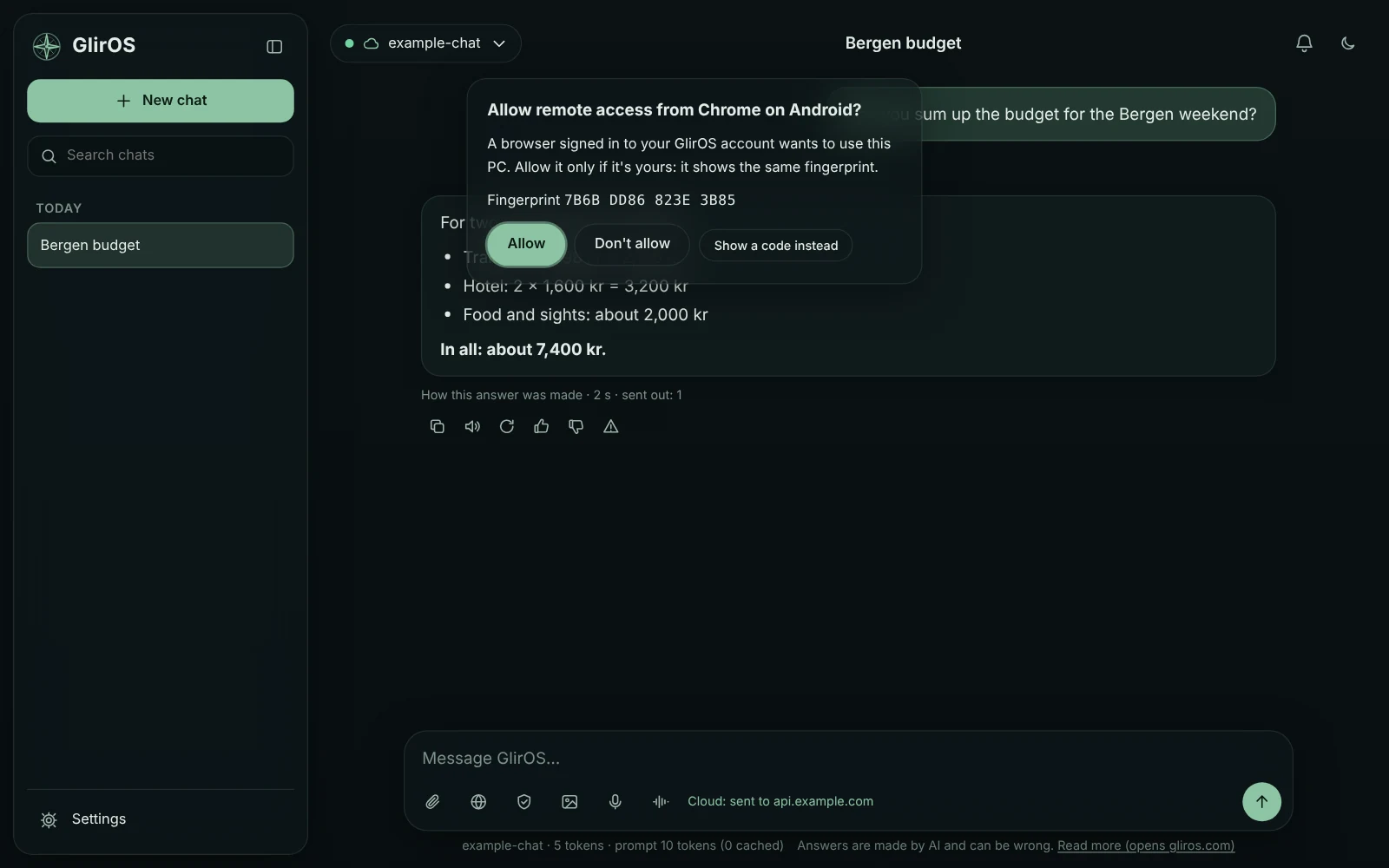
Removing a browser from the list ends its session at once. Clearing the browser's site data or a private window means asking again.
Switching it off
Settings > Security's Block all network traffic also stops remote access. Unlink forgets the key on the PC; revoke the device under Devices at home.gliros.com too (a revoked PC stops at once).
This guide is the same text GlirOS itself uses to answer questions about GlirOS.