Pictures, video, 3D and voice
Green screen and sound on the timeline
On the Media Studio timeline every clip and layer has its own colour key and its own sound.
Taking out a green screen
Choose a layer (or a clip), Add a part, Colour key:
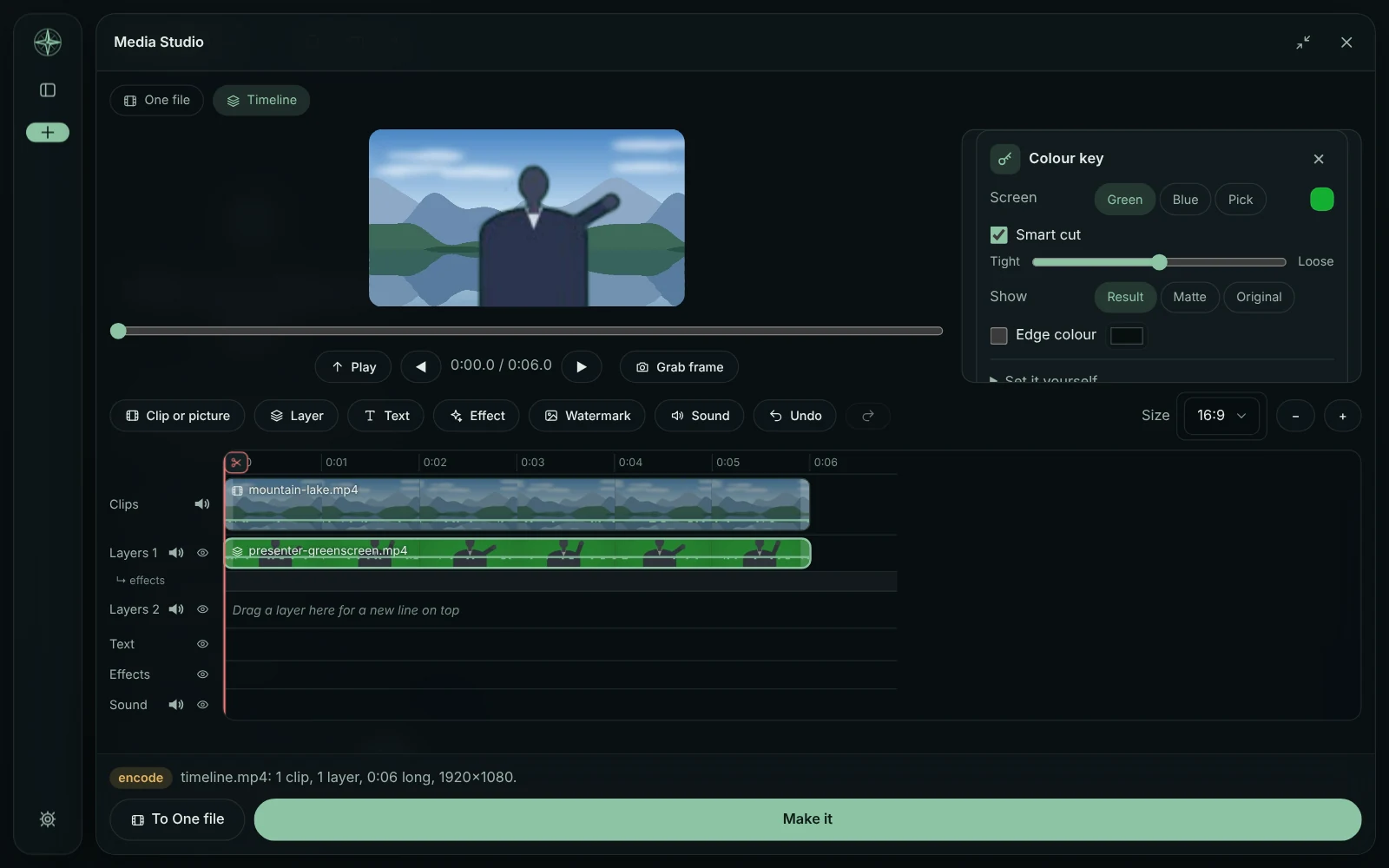
- Smart cut finds the green or blue screen from the picture and takes it out, with a Tight-to-Loose slider
- Pick takes the colour you click in the preview
- Show Matte shows what is see-through (black) and solid (white)
- Edge colour puts a soft outline behind the person
- Set it yourself has the threshold, levels, edge, feather and spill removal.
A clip on the main track gets a background colour instead (nothing is under it). In the chat, "remove the green screen" does the same on the chosen layer.
A picture's background
Add a picture with a green or blue screen to the chat and say "remove the background" (or "make the background transparent"): GlirOS takes the screen out with Smart cut and gives the picture back as a PNG with a see-through background, under its answer. With no even screen, the desktop app uses AI: on the timeline choose the layer and say "remove the background", or choose AI in its Colour key part. Fast — for people comes with GlirOS and runs on the processor; Best — any subject is the background remover add-on (Settings > Tools > AI add-ons, 474 MB; BiRefNet, MIT), for objects and finer hair. With AI ready, a picture in the chat with no screen is cut out right there. In the web version Fast runs in the browser (nothing is uploaded); Best is the desktop app's.
One file: Remove background
Media Studio's One file has a Remove background part for a picture or a clip: the same key (Green, Blue, Pick or AI), shown over a check pattern where it will be see-through. Its Background is See-through, a Colour, Blur (the picture itself, blurred) or a Green or Blue screen for keying again elsewhere. Make it removes the background last, after the other parts: a see-through PNG for a picture, a see-through WebM for a clip (its sound kept), an MP4 on a background. The web version makes the PNG and the MP4 (a clip there starts on black); a see-through video, Best and Corridor Key need the desktop app.
Settings > Tools > Media Studio > Remove background: try first decides the first way when you just say "remove the background": Automatic (a green or blue screen gets the colour key, anything else AI), the colour key, AI, or Corridor Key. When the choice can't work on that picture (no even screen, or no AI here), GlirOS uses the other way and says so. Words that name a way ("remove the green screen") still decide.
Corridor Key
Corridor Key is a separate tool by Corridor Digital, under its own licence. GlirOS doesn't include or run it. With it chosen in that setting, or installed on the PC, Remove background shows Export for Corridor Key: the clip's frames and GlirOS's own hint go to a folder in Videos\GlirOS for Corridor Key (Input and AlphaHint; each frame is a PNG, so it takes room), with Open the folder. Run Corridor Key on that folder yourself, then Import its matte and choose the shot's folder (or its Output\Matte): its EXR or PNG frames become the cut-out, and Make it uses them. The matte fits the file as it was exported, so make the other parts first.
Sound on clips and layers
Sound: each clip and layer keeps its own sound, linked so it moves and trims with it, with Mute, Volume and fades in its Sound part. Each line has its own mute and volume in its label.
Detach sound puts the sound on the sound row as its own block, still linked; Unlink frees it, and when it has been moved the block shows how far it is out of step, with Sync again. Every block with sound shows its waveform.
This guide is the same text GlirOS itself uses to answer questions about GlirOS.